


With the latest Twitter API it's become easy to create a neat latest tweets gadget.In this post i will show you how to add a Twitter bird with a speech bubble containing your latest tweet to your blog.The idea comes from Paulund.co.uk and all that's needed is some Css and a few lines of script.
View Demo
Add The Latest Tweet Twitter Bird To Your Blog
Remember Always Back Up Your Template Before You Make Changes - How To Back Up A Blogger Template
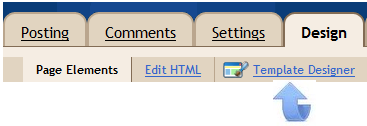
Step 1. In Your Blogger Dashboard Click Design > Template Designer, Then Advanced > Add Css
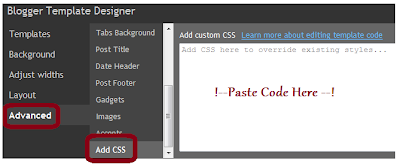
Step 2. Copy and Paste the following code into the Css section (See Paste Code Here Above)
1 2 3 4 5 6 7 8 9 10 11 12 13 14 15 16 17 18 | #twitter_update_list li{ background: #f4f8f9; /* Old browsers */ background: -moz-linear-gradient(top, #f4f8f9 1%, #e8f0f2 100%); /* FF3.6+ */ background: -webkit-gradient(linear, left top, left bottom, color-stop(1%,#f4f8f9), color-stop(100%,#e8f0f2)); /* Chrome,Safari4+ */ background: -webkit-linear-gradient(top, #f4f8f9 1%,#e8f0f2 100%); /* Chrome10+,Safari5.1+ */ background: -o-linear-gradient(top, #f4f8f9 1%,#e8f0f2 100%); /* Opera11.10+ */ background: -ms-linear-gradient(top, #f4f8f9 1%,#e8f0f2 100%); /* IE10+ */ filter: progid:DXImageTransform.Microsoft.gradient( startColorstr='#f4f8f9', endColorstr='#e8f0f2',GradientType=0 ); /* IE6-9 */ background: linear-gradient(top, #f4f8f9 1%,#e8f0f2 100%); /* W3C */ box-shadow: 1px -1px 2px #bbc6c8; -webkit-box-shadow: 1px -1px 2px #bbc6c8; -moz-box-shadow: 1px -1px 2px #bbc6c8; border-radius:7px; -moz-border-radius:7px; -webkit-border-radius:7px; padding:15px; width:300px;} |
Now we have our bubble we need to represent the speaking of this update which is done by adding an arrow to the bubble. This will done by using the :after CSS feature which adding content after the selected item. We need to add a triangle, to make a triangle in CSS you define the borders and give one side colour and make the other transparent and it will create a triangle. Copy and paste the follow to create the triangle in CSS.
1 2 3 4 5 6 7 8 9 10 | #twitter_update_list::after { content: ""; position: relative; left: 30px; border-width: 15px 15px 0; border-style: solid; border-color: #e8f0f2 transparent; display: block; width: 0;} |
That's it!
With just 2 lines of javascript, quick CSS changes and a picture of a big blue bird you can display your twitter updates on any web page in a speech bubble.
Step 3. Thats the Css added now return to the design page and click Add A Gadget > Choose Html / Javascript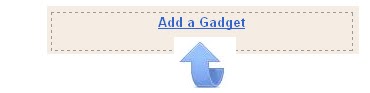

Step 4. Copy and Paste the following code into the Html/Javascript gadget
<ul id="twitter_update_list">
<li>Loading Tweets..</li>
</ul>
<a title="Follow Me" href="http://www.twitter.com/paulcrowepro" target="_blank"><img src="https://blogger.googleusercontent.com/img/b/R29vZ2xl/AVvXsEin6YNOeVO94lH5QN1R1OCLxex4rBAQKKNLuRjhod_WYgO-Zbuw7DbV8uemDFs6Vd85goljgWQRd3si2rtPgI4DEENViVdbS55T7ROPBDZkAe0Vdqus080Nog9AbYlau9NlOoJYW-uG1JsD/s1600/twitter-bird-gadget.png" /></a>
<script type="text/javascript" src="http://twitter.com/javascripts/blogger.js"></script>
<script type="text/javascript" src="http://twitter.com/statuses/user_timeline/paulcrowepro.json?callback=twitterCallback2&count=1"></script>
Important - Change my Twitter username paulcrowepro x2 with yours.
Step 5. Click Save and check out your new Twitter gadget.
Thanks again to Paulund.co.uk


