Showing posts with label widget. Show all posts

9.30.2011

Google Buzz Share Button - Widget for Blogger


Google Buzz is a great social tool which is very similiar to Twitter and Facebook. It's a wonderful way to engage and interact with your readers! Make sure to implement these Google Buzz buttons into your blogger posts, so that users can easily share your content on Google Buzz.


Google Buzz It Button to Blogger


  1. Go to Layout >Edit HTML in your Blogger Dashboard.
  2. Back up your existing Template before making any changes!
  3. Make sure to check the "Expand Widget Templates" box.
  4. Here is the Google Buzz it Code:
    <div style="float:right;padding:4px;">
    <a expr:href='&quot;http://www.google.com/reader/link?url=&quot; + data:post.url + &quot;&amp;title=&quot; + data:post.title + &quot;&amp;srcTitle=&quot; + data:blog.title+ &quot;&amp;srcURL=&quot; + data:blog.homepageUrl ' rel='nofolloW' style='text-decoration:none;' target='_blank'>
    <img alt='Buzz It' src='http://i48.tinypic.com/idyc04.png' style='border:0px;'/></a>
    </div>
  5. Search for this line of code in your template:
    <div class='post-header-line-1'/>
    and place the Google Buzz it Code right after the code you searched for above.
    If this doesn't work, then search for this code below and place the Google Buzz it Code directlybefore it.
    <data:post.body/>
  6. Now save your template.


Google Buzz Button with Share Count to Blogger


  1. Here is the Google Buzz it with Share Count Code 
    <div style="float:right;padding:4px;"> <script type='text/javascript'> njuice_buzz_url = '<data:post.title/>'; njuice_buzz_title = '<data:post.url/>'; njuice_buzz_share = 'reader'; </script> <script type='text/javascript' src='http://button.njuice.com/buzz.js'/> </div>
  2. Place the Google Buzz it with Share Count Code either
    directly after this:
    <div class='post-header-line-1'/>
    OR 
    directly before this:
    <data:post.body/>
  3. To change the style of the widget add either 
    njuice_buzz_size = 'small';
    or 
    njuice_buzz_size = 'simple';
    just after 
    njuice_buzz_share = 'reader';
  4. Save your blogger template.

9.29.2011

How To Add Revolver Maps In Blog

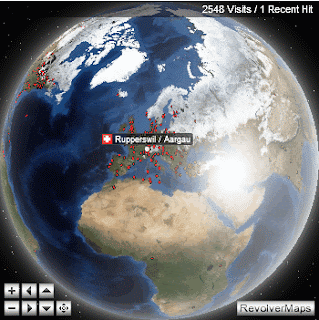
The use of Revolving Globe gadget to display the visitors of a website helps the author to analyse his page and the visitors to to identify how much the website is spread around the globe. They can decide whether to trust the content or not.


How to add a widget to a blogger.com (blogspot.com) layout?
  1. Login to your Blogger-account
  2. Under 'Manage Blogs' click on 'Design'. You get an overview of the page elements on your blog. If not click on 'Page Elements'
  3. Click on one of the 'Add a Gadget' links, a pop-up opens
  4. Under 'Basics' click on 'HTML/JavaScript'
  5. Paste the code you get at revolvermaps.com into 'Content', optionally add a title
  6. Click on 'SAVE'
  7. Drag the new page element representing the widget to a position of your choice
  8. Click on 'PREVIEW', check if the widget fits into your layout. You may have to experiment a little in order to find appropriate size-settings for the widget.
  9. Click on 'SAVE', you're done
How to add a widget to Wordpress.com 
  1. The HTML-Map as well as the HTML-Button are compatible with Wordpress.com. Create the Map here, if you want to use the Button create it here, make sure you've choosen 'HTML-Map' respectively 'HTML-Button' as the code version. Add the code to your Wordpress-Blog as follows:
    1. Login to your Wordpress account
    2. Go to 'My Blog' - 'Dashboard' - 'Appearance' - 'Widgets'
    3. Drag the Element 'Text - Arbitrary text or HTML' to the sidebar
    4. Copy the code from the RevolverMaps setup page to the big textbox, optionally add a title
    5. Click on save, you're done.

Code for the Revolver maps widget


For Larger Version Go to : http://www.revolvermaps.com/?target=setup
(180px*180px  To 350px*350px)


For Mini version Go to : http://www.revolvermaps.com/?target=setupmini
(70px*70px  To 178px*178px)


9.09.2011

Latest Tweet Twitter Bird With Speech Bubble Gadget For Blogger


With the latest Twitter API it's become easy to create a neat latest tweets gadget.In this post i will show you how to add a Twitter bird with a speech bubble containing your latest tweet to your blog.The idea comes from Paulund.co.uk and all that's needed is some Css and a few lines of script.


View Demo 

Add The Latest Tweet Twitter Bird To Your Blog


Remember Always Back Up Your Template Before You Make Changes - How To Back Up A Blogger Template 

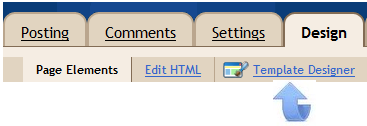
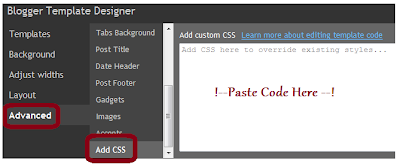
Step 1. In Your Blogger Dashboard Click Design > Template Designer, Then Advanced > Add Css


Step 2. Copy and Paste the following code into the Css section (See Paste Code Here Above)


1
2
3
4
5
6
7
8
9
10
11
12
13
14
15
16
17
18
#twitter_update_list li{
     background: #f4f8f9; /* Old browsers */
     background: -moz-linear-gradient(top, #f4f8f9 1%, #e8f0f2 100%); /* FF3.6+ */
     background: -webkit-gradient(linear, left top, left bottom, color-stop(1%,#f4f8f9), color-stop(100%,#e8f0f2)); /* Chrome,Safari4+ */
     background: -webkit-linear-gradient(top, #f4f8f9 1%,#e8f0f2 100%); /* Chrome10+,Safari5.1+ */
     background: -o-linear-gradient(top, #f4f8f9 1%,#e8f0f2 100%); /* Opera11.10+ */
     background: -ms-linear-gradient(top, #f4f8f9 1%,#e8f0f2 100%); /* IE10+ */
     filter: progid:DXImageTransform.Microsoft.gradient( startColorstr='#f4f8f9', endColorstr='#e8f0f2',GradientType=0 ); /* IE6-9 */
     background: linear-gradient(top, #f4f8f9 1%,#e8f0f2 100%); /* W3C */
     box-shadow: 1px -1px 2px #bbc6c8;
     -webkit-box-shadow: 1px -1px 2px #bbc6c8;
     -moz-box-shadow: 1px -1px 2px #bbc6c8;
     border-radius:7px;
     -moz-border-radius:7px;
     -webkit-border-radius:7px;
     padding:15px;
     width:300px;
}
Now we have our bubble we need to represent the speaking of this update which is done by adding an arrow to the bubble. This will done by using the :after CSS feature which adding content after the selected item. We need to add a triangle, to make a triangle in CSS you define the borders and give one side colour and make the other transparent and it will create a triangle. Copy and paste the follow to create the triangle in CSS.
1
2
3
4
5
6
7
8
9
10
#twitter_update_list::after {
    content: "";
    position: relative;
    left: 30px;
    border-width: 15px 15px 0;
    border-style: solid;
    border-color: #e8f0f2 transparent;
    display: block;
    width: 0;
}
That's it!
With just 2 lines of javascript, quick CSS changes and a picture of a big blue bird you can display your twitter updates on any web page in a speech bubble.
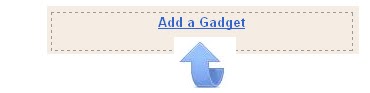
Step 3. Thats the Css added now return to the design page and click Add A Gadget > Choose Html / Javascript


Step 4. Copy and Paste the following code into the Html/Javascript gadget


<ul id="twitter_update_list">
<li>Loading Tweets..</li>
</ul>
<a title="Follow Me" href="http://www.twitter.com/paulcrowepro" target="_blank"><img src="https://blogger.googleusercontent.com/img/b/R29vZ2xl/AVvXsEin6YNOeVO94lH5QN1R1OCLxex4rBAQKKNLuRjhod_WYgO-Zbuw7DbV8uemDFs6Vd85goljgWQRd3si2rtPgI4DEENViVdbS55T7ROPBDZkAe0Vdqus080Nog9AbYlau9NlOoJYW-uG1JsD/s1600/twitter-bird-gadget.png" /></a>
<script type="text/javascript" src="http://twitter.com/javascripts/blogger.js"></script>
<script type="text/javascript" src="http://twitter.com/statuses/user_timeline/paulcrowepro.json?callback=twitterCallback2&count=1"></script>


Important - Change my Twitter username paulcrowepro x2 with yours.

Step 5. Click Save and check out your new Twitter gadget.

Thanks again to Paulund.co.uk

Related Posts Plugin for WordPress, Blogger...